
If you already have a page that is linked to an Asset within Craft and you'd like to change that file, follow the simple instructions below.
Before you begin, please note that replacing an Asset can not be undone, so you may like to download a copy of the Asset before you replace it in case you need to restore it.
- Login to Craft CMS
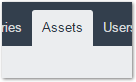
- Along the top of the page, click on "Assets"
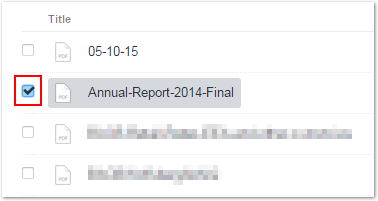
- Locate the file you would like to update, and tick the box beside it.
Tip: If you don't see your file immediately, it may be within a sub-folder. Click on the arrow next to the folder name on the left hand side of the page to expand sub-folders. Then click on a sub-folder to list files in that folder.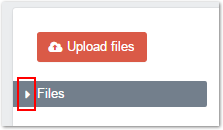

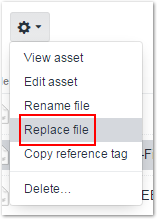
- With the file selected, use the menu (cog icon) and select "Replace file"
- Browse for the new file on your computer, and upload it.
- Once the file has completed the upload process, the Asset will be replaced with your new file. Craft will automatically update all pages that link to this Asset so that the new Asset is selected, even if the file name is different. The old file will no longer be available.
0 Comments